Skip to content
Knowledge article

HubSpot Outlook Integration: How the Office 365 Connection Works

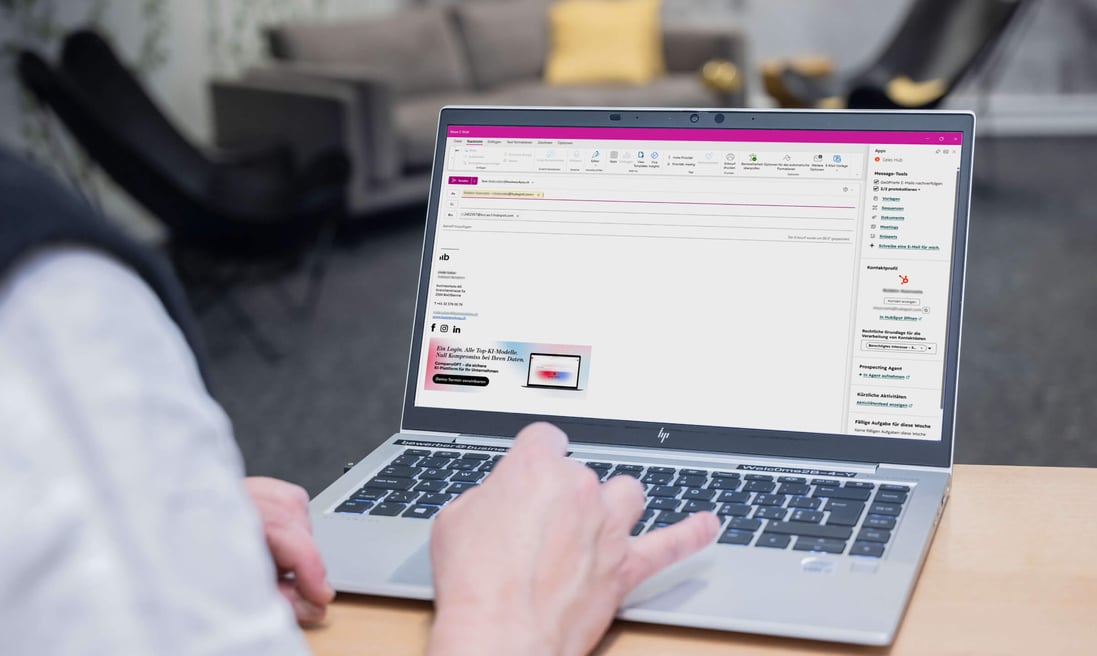
The HubSpot Outlook integration connects Microsoft Office 365 with the HubSpot CRM. It consists of the HubSpot Sales Office 365 add-in—a sidebar directly within Outlook—as well as the connection between your inbox and calendar and HubSpot. This automatically records emails, appointments, and contact information in the CRM without employees having to leave Outlook. Setup is done via your Microsoft login and takes just a few minutes. 

HubSpot Outlook Integration: How the Office 365 Connection Works
11:22

b4you-hubspot-outlook-integration-1200x700

At a Glance

  • What it is: An Outlook add-in that connects your mailbox and calendar to the HubSpot CRM.

  • Supported versions: Outlook for Windows (classic and modern), Outlook for Mac (classic and modern), and Outlook in the browser.

  • Setup: Via Microsoft login; takes just a few minutes, no IT project required.

  • Core features: Contact recognition, direct contact creation, automatic email logging, calendar synchronization, snippets, templates, email tracking, meeting links, and an AI assistant for sales emails.

What is the HubSpot Outlook integration?

The HubSpot Outlook integration is the official connection between HubSpot CRM and Microsoft Office 365. It consists of two components that work together. The first is the HubSpot Sales Office 365 add-in: a sidebar that appears right next to the open email in Outlook and displays customer data from the CRM. The second is the connection between your inbox and calendar and HubSpot, which works in the background to ensure that emails and appointments are automatically synced to the CRM.

Custom class car8-gradient-red

This difference is important in practice:
If you only install the add-in but do not set up the calendar connection, your appointments will not be synchronized automatically. To get the full benefit, both components should be set up.

How do you set up the HubSpot Outlook integration?

Setup is done via your Microsoft login and usually takes just a few minutes. The add-in is installed for your Outlook account, and then your inbox and calendar are connected to HubSpot. No migration project or adjustments to existing processes are required; Outlook remains exactly as employees are used to.

Which versions of Outlook are supported?

The HubSpot Sales Office 365 add-in works in the classic version of Outlook for Windows and Mac, the new version of Outlook for Windows and Mac, and Outlook in the browser. This covers all common workplace scenarios, regardless of whether the company uses Windows computers, Macs, or the browser. The only requirement is that the email account is connected to HubSpot.

How does HubSpot determine whether a sender is already in the CRM?

When you open an email, the HubSpot sidebar automatically checks whether the sender already exists as a contact in the CRM. If they’re already in the system, their profile appears immediately, showing their history, associated companies, and open deals. If they’re not in the system, simply click “Add to HubSpot”: The contact information is filled in on the form and saved without leaving Outlook.

This may sound like a small thing, but it has a big impact. New customer contacts are created right where they naturally appear—in your inbox. This closes the common gap where a promising inquiry never makes it into the CRM because manually entering it gets lost in the day-to-day workflow.

Are Outlook appointments automatically recorded in the CRM?

Yes. If you schedule an appointment in Outlook and invite someone who already exists as a contact in HubSpot, that appointment automatically appears in the contact’s timeline—and, by default, also under the associated company. Conversely, meetings scheduled in HubSpot automatically appear in the Outlook calendar. This means appointments don’t have to be entered twice.

For the team, this means that the CRM provides a clear record of when and with whom someone spoke—even for colleagues who weren’t part of the meeting. There are two limitations to be aware of: Only the main calendar is synchronized, and synchronization takes effect from the moment the connection is established; older appointments are not imported retroactively.

What features does the HubSpot sidebar in Outlook offer?

The sidebar makes the CRM usable in your inbox, rather than just visible. It includes the following features:

Complete contact profile:

Contact information, history (calls, emails, website page views, changes in lifecycle phase), as well as associated companies, deals, and tickets. Tasks can be created directly, and deals and tickets can be assigned directly.

Automatic Email Logging:

Sent and received emails are logged in the CRM without the need for manual notes or CCing colleagues.

Snippets and Templates:

Two time-savers for writing. Snippets are short text blocks for phrases you type over and over again, such as an appointment confirmation or a note about a delivery deadline. Templates are complete emails for recurring situations, such as initial contact or sending a quote. Both can be inserted with a single click and then customized. Since everyone draws from the same pool of content, the entire team writes in a consistent style without having to rephrase things every time.

Email Tracking:

A notification shows whether and when an email was opened, allowing you to follow up promptly.

Meeting Links:

Customers can book an available appointment in the calendar directly from the email, without having to exchange multiple emails. This appointment is then also recorded in the contact's file.

Documents:

Sales documents can be sent as a trackable link instead of as a separate attachment.

How does AI help with writing emails in Outlook?

The Outlook add-in includes an AI assistant for sales emails. You briefly specify what the email is about (such as an initial contact or a follow-up), who the customer is, and what tone the email should have. Within seconds, the AI provides a complete draft that can be edited before sending.

This saves a noticeable amount of time on standard emails without making the message seem impersonal. As with all AI-generated text, it’s important to proofread the suggestion before sending, especially when it comes to facts and figures.

Which HubSpot license is required for the Outlook integration?

The integration itself is not an add-on module that must be purchased separately but is an integral part of HubSpot. The type of seat assigned is crucial. Anyone who actively communicates with customers—that is, who wants to log emails, create contacts, and use snippets—needs a Core seat. To access the full range of features in the Professional and Enterprise versions—such as the extensive template library and automated sequences—a Sales or Service Hub seat is required.

Not everyone in the company therefore needs the most comprehensive license. When planning, it’s worth asking who actually communicates actively with customers and who merely needs access to customer data and analytics. For read-only access, HubSpot provides a free View-Only seat that can be assigned an unlimited number of times.

Custom class car8-gradient-red

For which teams is integration worthwhile?

The integration is beneficial for any team that interacts with customers—including sales, support, customer service, and marketing alike. Employees don’t have to change the way they work: Outlook remains their familiar tool, with HubSpot complementing it in the background.

The benefits grow with the size of the team. Customer communications are recorded centrally and consistently, regardless of which person is currently responsible. This simplifies handoffs, prevents information loss during vacations or sick leave, and creates a shared, reliable customer history across all departments instead of many individual inboxes.

Frequently Asked Questions About the HubSpot Outlook Integration

Is there an extra charge for the Outlook integration?

No, it's part of HubSpot and isn't billed separately. Costs are based on the HubSpot license and the number of assigned seats, not on the integration itself.

Can the IT department roll out the add-in centrally for all employees?

Yes. You can centrally deploy the add-in through the Microsoft 365 Admin Center. All users in the domain will then receive it automatically without having to install anything themselves. After deployment, it may take up to 72 hours for the add-in to appear in Outlook.


What technical requirements must the mailbox meet?

The mailbox must be hosted on Microsoft 365. Outlook must be installed as a Click-to-Run version; the version from the Microsoft Store is not supported, nor are terminal server environments.

Do all emails really end up in the CRM, including internal or confidential ones?

No, this can be controlled. Using the so-called “Never-Log” list, individual email addresses or entire domains can be excluded from logging—for example, your company’s domain for internal messages. Each person manages their own personal list, and super admins can also set up an account-wide list for everyone. Each list can contain up to 500 entries.

Will existing Outlook contacts be imported into HubSpot?

Yes, there is a separate connection for Outlook contacts. The sync can be set up to sync only to HubSpot, only to Outlook, or in both directions. Personal contact folders are included, but shared contacts and address books from Active Directory are not.

Are appointments created before the relationship was established also imported?

No. Synchronization begins as soon as the calendar is connected. Existing, older appointments are not retroactively imported into the CRM.

Does the integration also work on a smartphone?

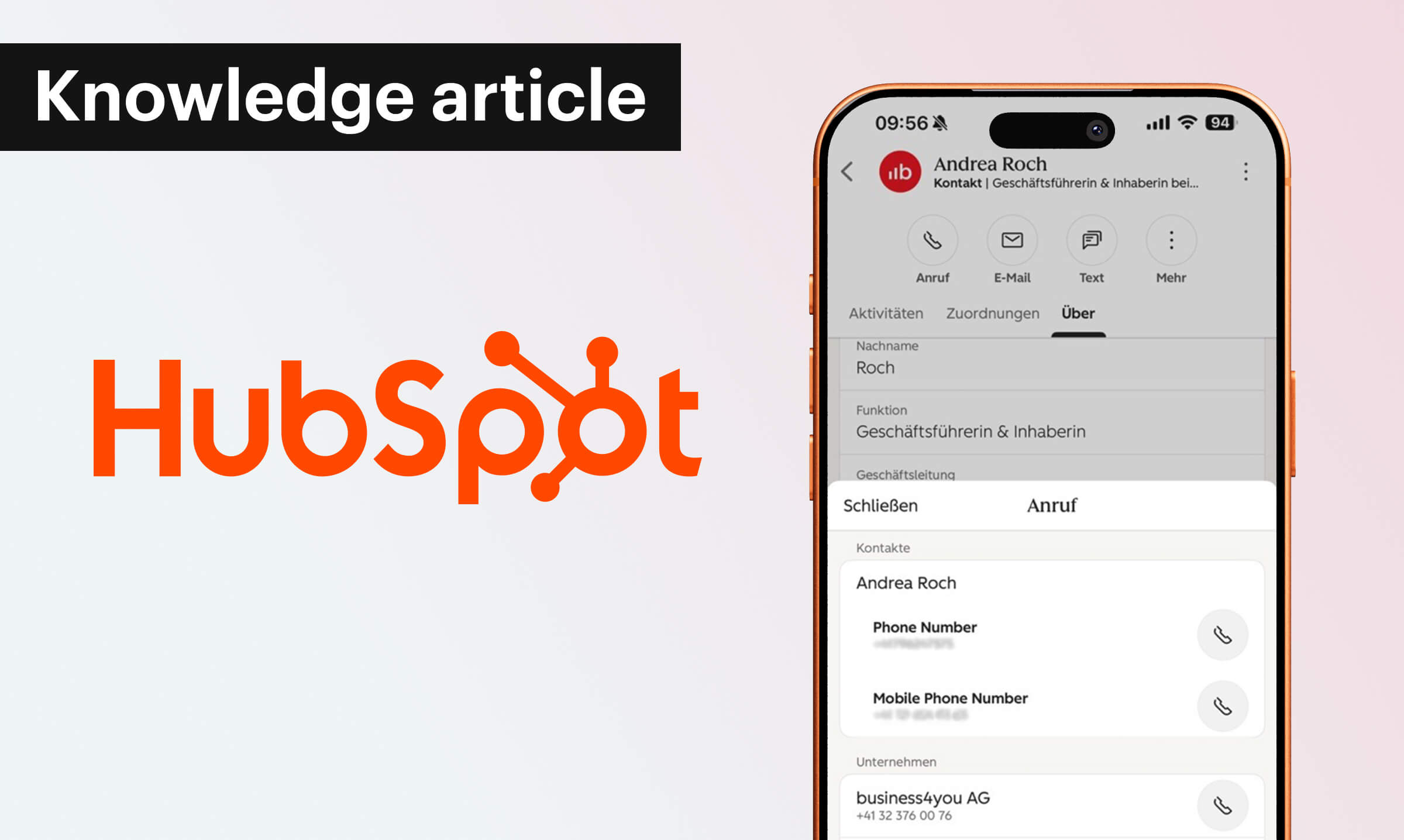
The add-in is designed for Outlook on Windows, Mac, and in the browser. For on-the-go use, HubSpot offers its own mobile app, which also provides access to contacts, history, and deals.

Can automated follow-up sequences be initiated from Outlook?

Yes. Contacts can be added directly from the add-in to what are called “sequences,” which are automated follow-up series. This requires Sales Hub or Service Hub in the Professional or Enterprise edition, including an assigned seat.

Conclusion

The HubSpot Outlook integration bridges the gap between where customer communication actually takes place and where customer data is stored. Emails, appointments, and new contacts are automatically added to the CRM; templates and an AI assistant speed up the writing process; and setup takes just a few minutes without anyone having to change the way they work.
 

Would you like to know how to implement integration into your Outlook and Microsoft 365 environment and which licensing structure makes the most sense for your team? As a HubSpot partner, we’d be happy to advise you.


{}